Cafans Journal
Stories & FindsThe CAFANS Guide to Spreadsheets: Build Smarter Shopping Sheets
The CAFANS Guide to Spreadsheets: Build Smarter Shopping Sheets
Ask most shoppers to name their most valuable tool and they will mention a coupon app or a price-alert browser extension. Rarely will anyone say spreadsheet. Yet the humble spreadsheet remains the most flexible, durable and personal shopping assistant available. The CAFANS method—short for Catalog, Assess, Filter, Analyze, Negotiate, Save—turns a plain grid into a complete decision engine. This spreadsheet guide walks through each stage, showing how a shopping spreadsheet grows into a proper product comparison spreadsheet and, for experienced users, an agent shopping spreadsheet that can even hand data to a shopping agent.
Why a Spreadsheet Beats a Wish List
A wish list records desire; a spreadsheet records evidence. Once you track price, seller, shipping cost and reviews in one place, emotional buying gives way to arithmetic. The spreadsheet format also survives platform changes—when an app shuts down, your file remains. Start with two columns: item and price. That is enough to begin.
Step 1 — Catalog: Lay Out Your Shopping spreadsheet
Create one workbook with separate tabs: Items, Sellers, Budget and Notes. In the Items tab, define columns for product name, category, model number, target price, current price, currency, seller, shipping fee, tax, delivery date, return window, rating, review count and status. Add a data validation drop-down for category and status so entries stay consistent. Use a named range for the category list; formulas become readable later. If you shop across regions, add a currency converter column with a live rate cell, and keep a timestamp for when the rate was updated.
Step 2 — Assess: Turn It into a Product Comparison Spreadsheet
A product comparison spreadsheet scores options side by side. Assign weights to criteria: price 30%, quality 25%, warranty 20%, delivery 15%, seller reputation 10%. Put weights in a small block and use SUMPRODUCT to calculate a weighted score per row. Add a pivot table to see average price by category. Apply conditional formatting so the cheapest option turns green and anything above budget turns red. A scatter chart of price versus rating quickly reveals value outliers. The formula bar becomes your best friend: a VLOOKUP or XLOOKUP can pull seller details from the Sellers tab without retyping.
Step 3 — Filter: Keep Only Real Contenders
Use AutoFilter to hide items outside your budget or below a rating threshold. Create a filtered view and freeze the header row. Duplicate rows are common when you collect listings from several marketplaces, so run Remove Duplicates on a composite key of model number and seller. A helper column concatenating those fields makes cleanup reliable. Keep an archive tab—never delete—so you can revisit rejected options when prices change.
Step 4 — Analyze: Formulas That Do the Thinking
Build a summary block with SUM, AVERAGE, MEDIAN and STDEV to understand price spread. A COUNTIF formula counts how many items sit in each category; SUMIFS totals spend per seller. Add an IF statement that flags “buy now” when current price is below target price. Use absolute references for thresholds so you can fill formulas down safely, and protect key cells with sheet protection to avoid accidental edits. For longer projects, a macro or Apps Script automation can refresh timestamps and re-sort rows each morning.
Step 5 — Negotiate: The Agent Shopping Spreadsheet
When you delegate purchases—to a personal shopper, a procurement colleague or an automated buying agent—an agent shopping spreadsheet becomes the handoff document. Add columns for agent name, commission, maximum acceptable price, preferred substitute and approval status. Use checkboxes for approval and a hyperlink to the original listing. Keep a change log tab with date, editor and reason; this is your audit trail if a purchase goes wrong. A shared link with comment-only access lets agents suggest edits without breaking formulas. If your agent uses APIs, export the sheet as CSV or connect it through IMPORTDATA so the spreadsheet stays the single source of truth.
Step 6 — Save: Budget Discipline and Review
Link the Budget tab to the Items tab with a running total. Add a dashboard with a sparkline showing spend over time and a gauge chart against the monthly limit. Use goal seek to answer “what price must I hit to stay under budget?” Schedule a weekly recalculation and a monthly review. Export a PDF for records, keep a backup copy, and note your version history in the filename.
Quick Reference of Settings
Familiarize yourself with cell references, range selection, sort options, freeze panes, text wrapping, number formatting, sheet tabs, cross-sheet formulas and pivot charts. These small features compound: a well-formatted shopping spreadsheet is easier to trust and faster to update.
Final Word
The CAFANS approach shows that a spreadsheet is not a static table but a decision workflow. Begin with a simple shopping spreadsheet, evolve it into a product comparison spreadsheet, and scale to an agent shopping spreadsheet when others join the process. Follow this spreadsheet guide, and every purchase becomes a documented, defensible choice rather than an impulse.
Editor's selection
Popular Products

Ph076 Breathable Running Shoes - CSSBuy spreadsheet - 136150

Ni Vests, T-Shirt and Clothing Sets 1000 - JoyaGoo spreadsheet - 141084

FL01-005ph Spring and Autumn Casual Clothing Set - Sugargoo spreadsheet - 136271

MX16 Clothing Set - Hipobuy spreadsheet - 137693

Clothing Set 1 - Oopbuy spreadsheet - 136873

D All-Over Print Clothing Set - UIDBuy spreadsheet - 136221
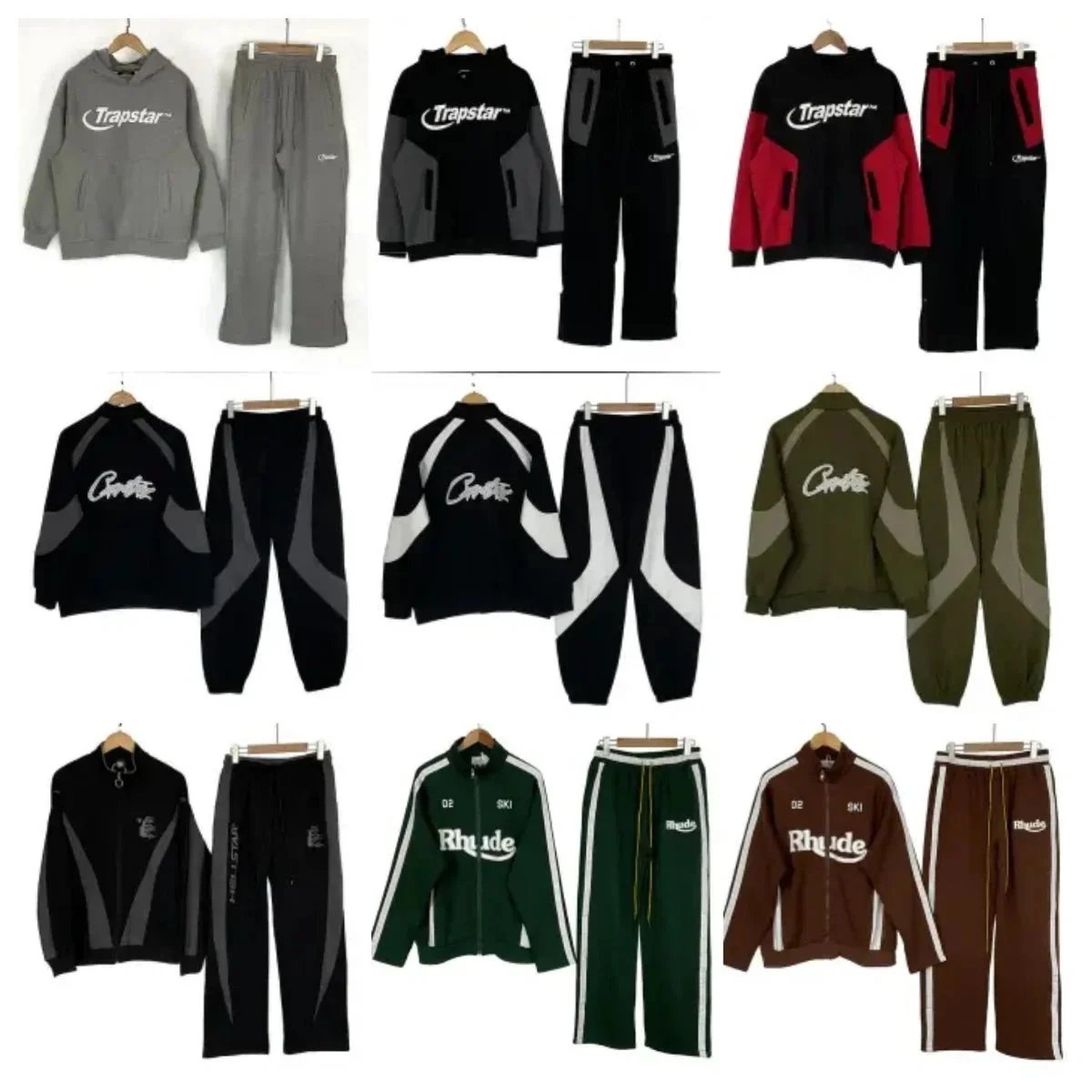
L-001 Casual Hip-Hop Clothing Set - GTBuy spreadsheet - 136248